
Key takeaway: The most important thing when depositing to or withdrawing from Bitget is to match all four items—asset, network, address, and tag/memo—before sending. Users in Korea should check account-holder verification when transferring between Upbit and Bitget, and CODE Travel Rule integration requirements when transferring between Bithumb and Bitget. If you are using an address for the first time, it is safer to send a small test amount before making the full transfer.
Update on resuming services after the incident: Bitget stated in its official announcement on October 2, 2026 that it had completed its plan for a phased service resumption. This company announcement does not guarantee that all accounts, assets, and networks are currently available. Check the actual screens for each account, asset, and network, as well as the incident timeline and current verification methods, to confirm whether transfers are possible.
Affiliate disclosure: This document contains an affiliate sign-up link for Bitget. CoinPop may receive compensation if eligible users sign up or trade, but readers will not incur any additional costs. The deposit and withdrawal procedures and assessments of official sources were prepared independently of the affiliate relationship.
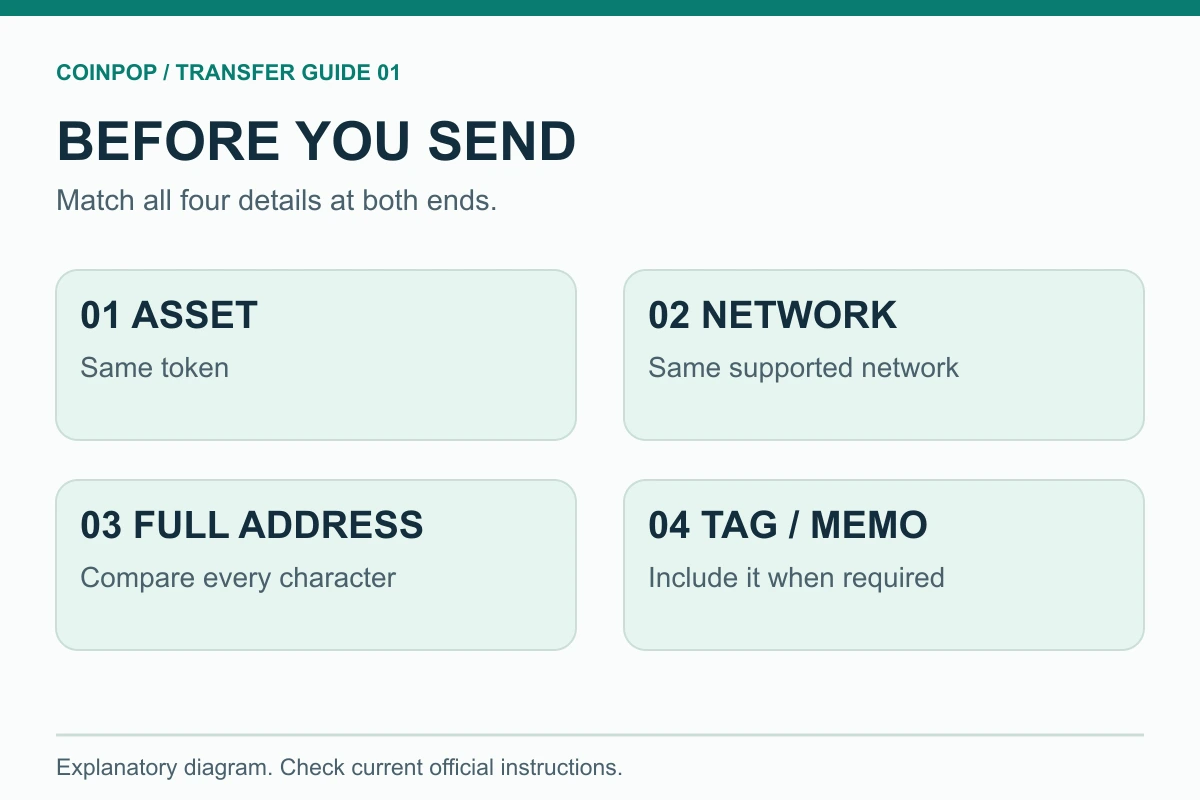
Bitget Deposits and Withdrawals at a Glance
| Step | Items that must be checked | Potential problems if incorrect |
|---|---|---|
| 1. Select the asset | Asset name, such as USDT, BTC, or XRP | Sending to an address for a different asset may make recovery difficult or impossible |
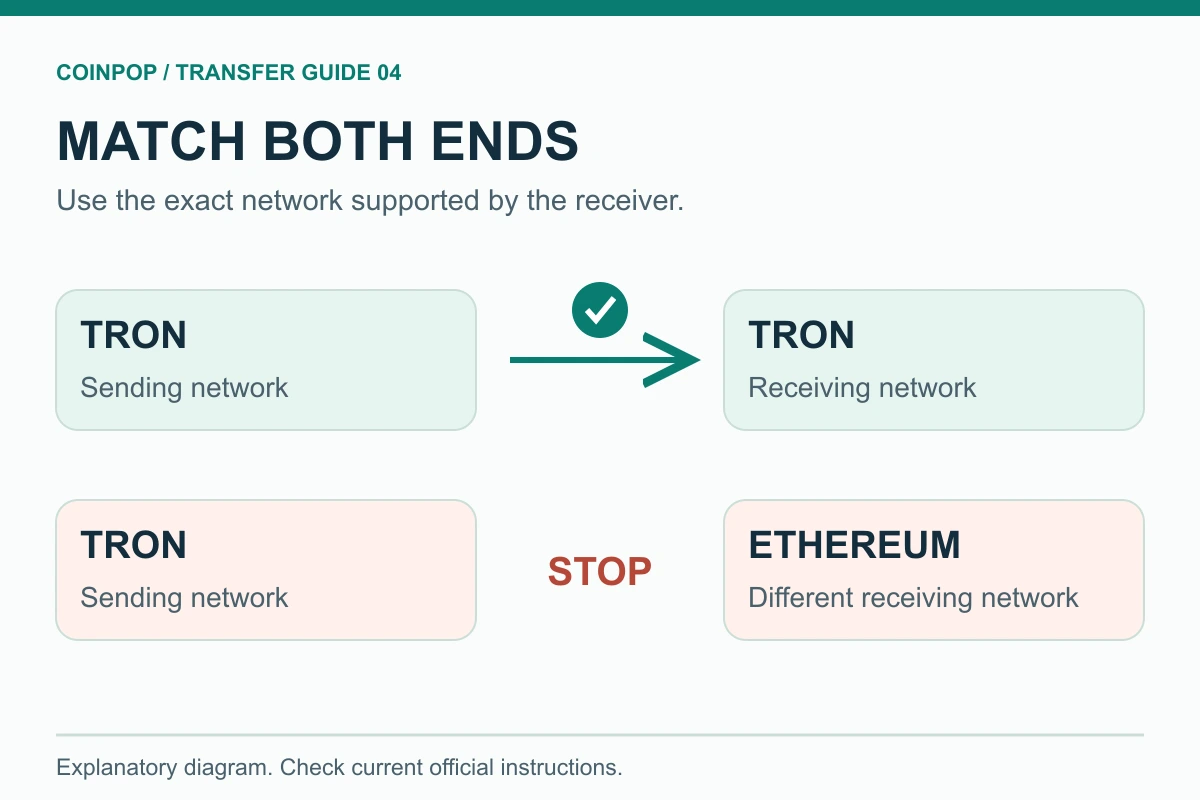
| 2. Select the network | Check that the network on the sending and receiving screens is exactly the same | Deposit not credited, manual recovery request, or loss of assets |
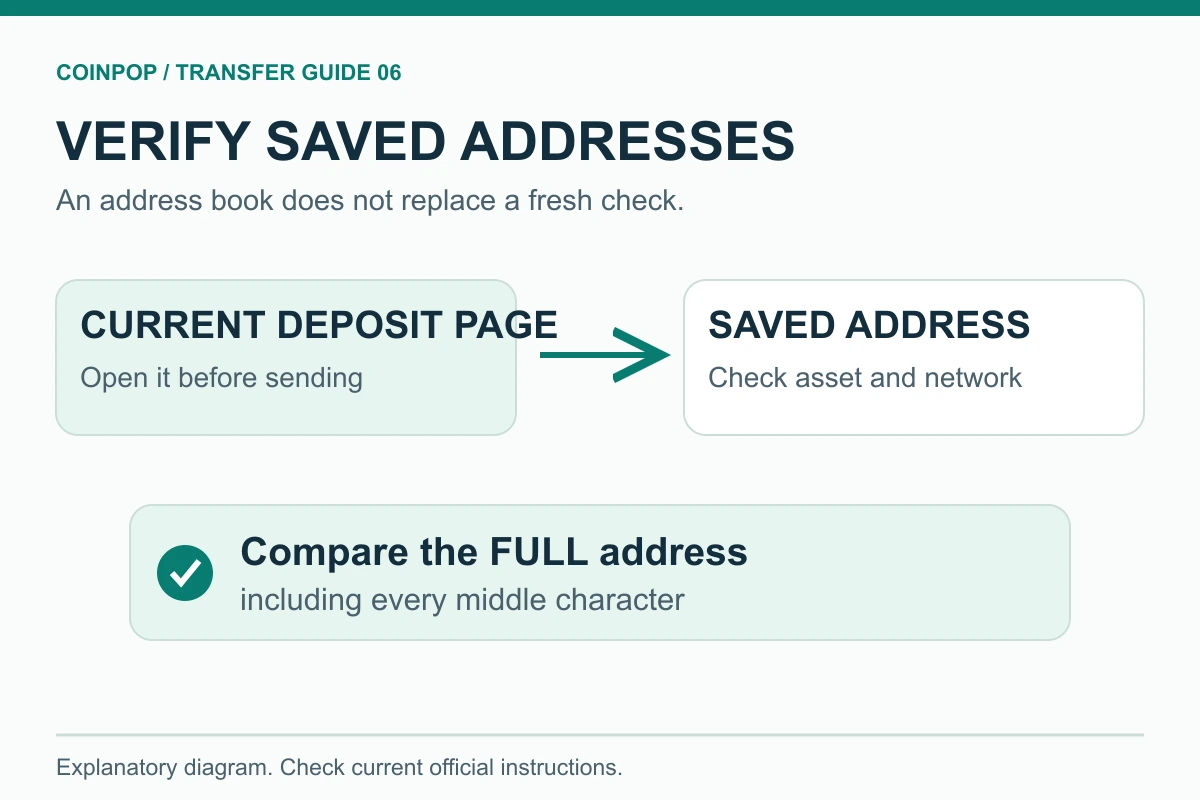
| 3. Check the address | Check that every character in the full deposit address newly copied from the current receiving screen matches the address entered on the withdrawal screen | Funds sent to the wrong address or an address altered by an attacker |
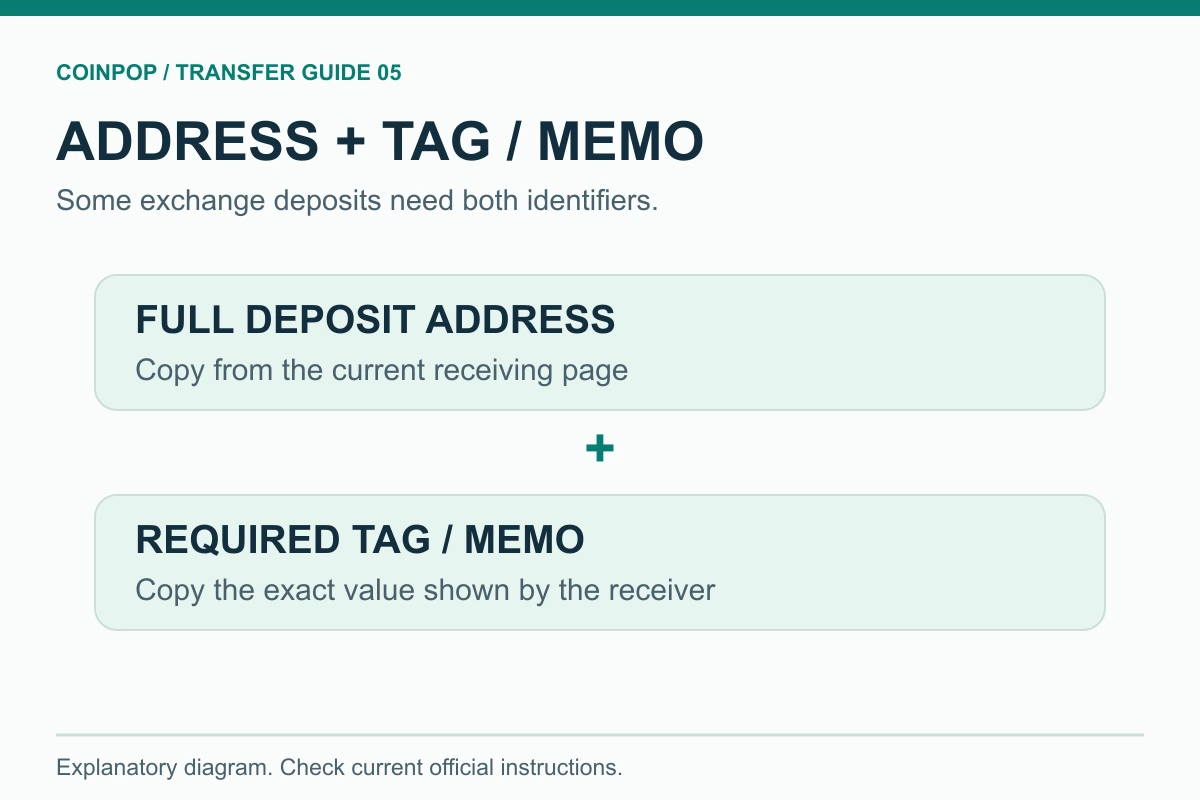
| 4. Check the tag/memo | Check whether a Destination Tag/Memo is required for assets such as XRP and XLM | Funds may reach the exchange's shared address but not be credited to your account automatically |
| 5. Check the amount and fees | Minimum deposit amount, available withdrawal amount, and network fee shown on screen | Amount below the minimum or a lower-than-expected amount received |
| 6. Check security | KYC, 2FA, withdrawal address book, and security waiting period | Withdrawal rejection or delay, or account security risk |
| 7. Make a test transfer | First send a small amount you can afford to lose under the same conditions | Discovering a settings error after sending a large amount |
1. Before generating a deposit address
- Check the KYC status of your Bitget account and whether the service is available in your region of residence.
- Make sure you are logged in through the official app or domain, not a phishing link.
- Check that Bitget supports deposits for the asset you plan to send and that deposits are not currently suspended.
- Check whether the sending exchange and Bitget support a common network.
- If this is an address you are using for the first time, set up 2FA and a withdrawal address whitelist.
Bitget states in its official FAQ that identity verification is required to use core services. Withdrawals may also be temporarily restricted for risk management purposes after security settings are changed, a password is reset, or a new device is used to log in. These restrictions are different from blockchain transfer delays, so first check the reason shown on screen and the time remaining.
2. How to Deposit Coins to Bitget
- In the Bitget app or on the website, go to Assets → Deposit.
- Select the asset to deposit. Do not confuse assets with similar tickers.
- Select a network supported by both exchanges.
- Check the receiving account and current account type shown on the deposit screen. Standard accounts and Unified Trading Accounts (UTAs) may have different balance structures.
- Copy the generated deposit address and tag/memo separately.
- Paste the address and tag/memo into the withdrawal screen of the sending exchange.
- Check the asset, network, full receiving address, tag/memo, and amount again. Do not verify an address by checking only a few characters at the beginning and end; compare every character, including those in the middle. For a route you are using for the first time, send a small amount and confirm it arrives successfully.
- After a TxID is generated, wait until Bitget's minimum number of confirmations has been reached.
Do not reuse an address from old notes, screenshots, or transaction history. Exchange deposit addresses may be updated due to policy or wallet infrastructure changes. Even if the beginning and end look the same, the address may differ in the middle. Each time, reopen the address on the current Bitget deposit screen and compare every character. The official security guidance on address poisoning attacks also recommends checking the full address and sending a small test amount.
Deposited, but the balance is not visible on the futures trading screen?
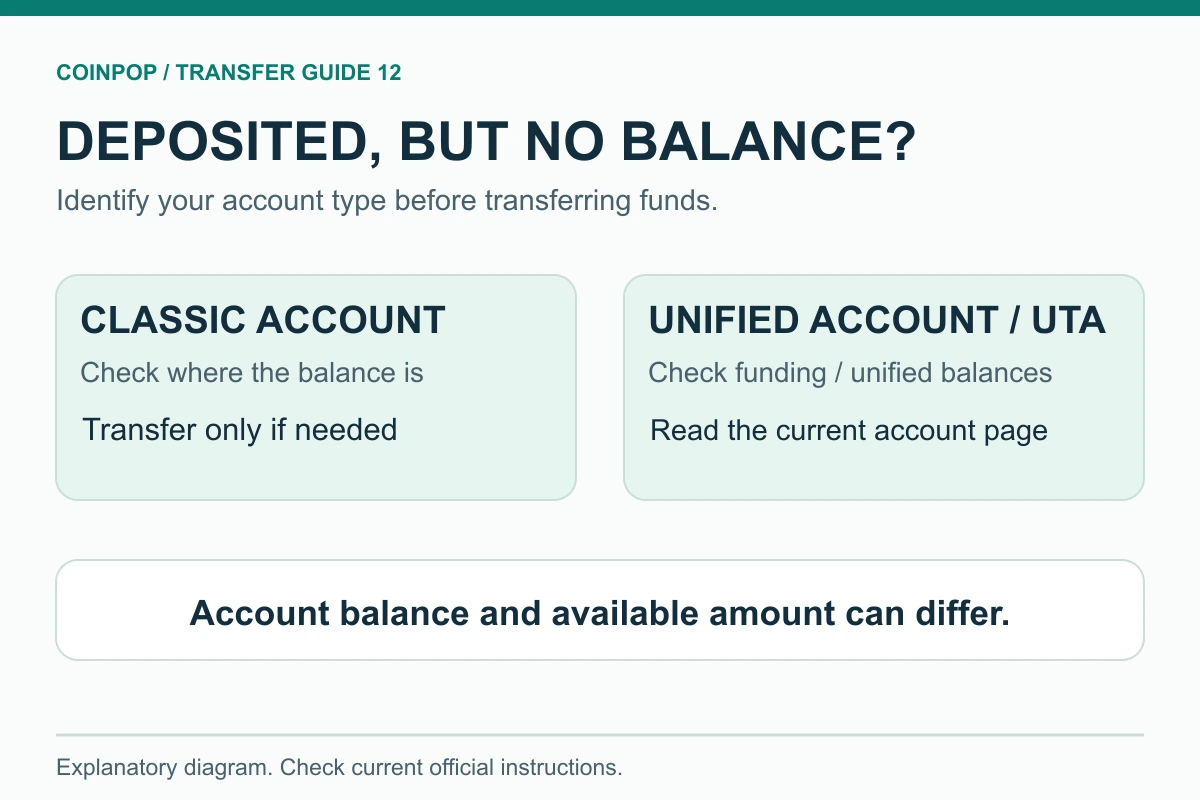
First, check your deposit history to confirm that the deposit was credited and identify the account holding the balance. If spot, funding, and futures balances are separated in a standard account, use Transfer (transfer between accounts) to check the source account, destination account, and asset, then transfer the funds. A Unified Trading Account (UTA) may use a funding account and unified account structure, so do not assume that you need to move funds from spot to futures. Check the official UTA guide and the balances and available amounts shown on the current screen.
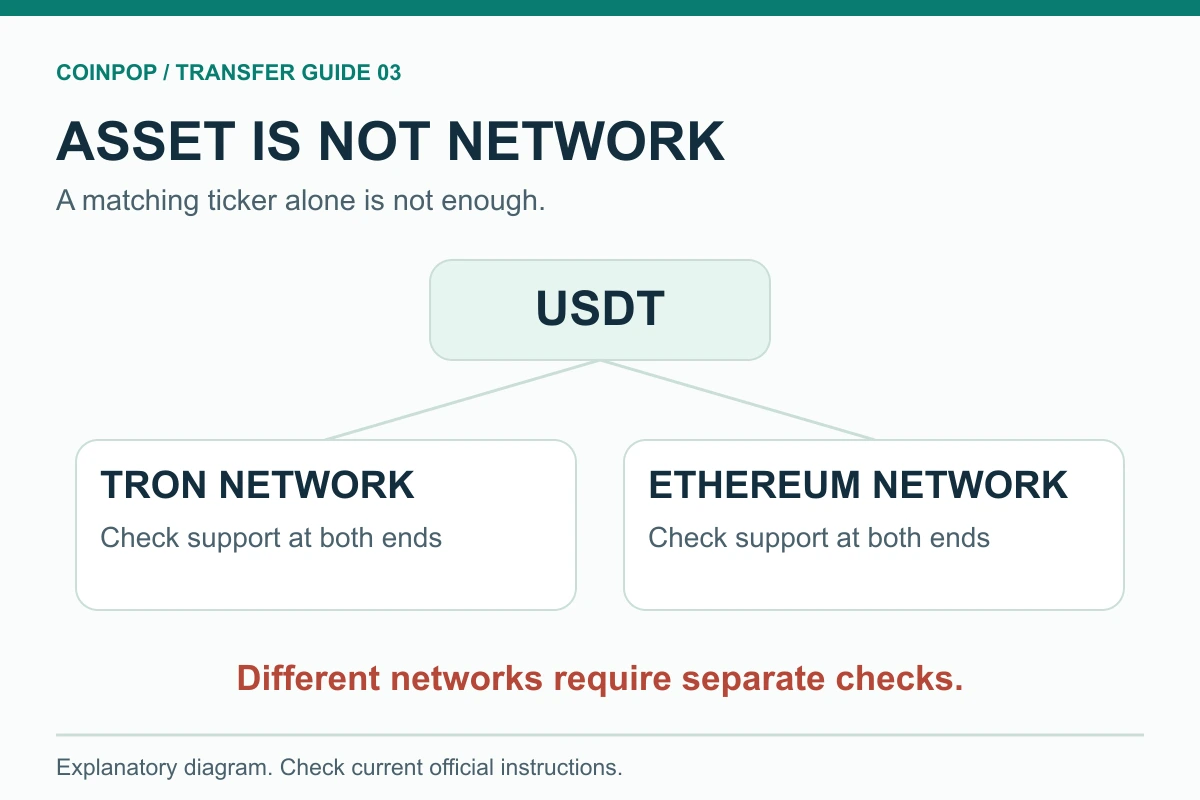
How to assess networks with similar names
| Example shown | Is it the same network? | How to check |
|---|---|---|
| Ethereum/ERC20 network designation | Generally refers to the same standard, but check the on-screen instructions | Compare the full network names and address formats on both exchanges |
| Tron/TRC20 network designation | TRON-based network | Check whether the receiving screen supports TRC20 |
| BNB Smart Chain/BEP20 network designation | Generally refers to the BSC network | Do not confuse it with BEP2; check the chain ID and instructions |
| Comparison of Arbitrum One and Ethereum networks | Different | Do not transfer if the networks differ, even if the addresses look the same |
| Comparison of Optimism and Base networks | Different | They are separate networks, even though both use the EVM address format |
Do not assume networks are the same just because both addresses appear to start with 0x. EVM-based chains may use the same address format, but assets are recorded on different chains. Transfer only when you have directly selected the same network on both the sending screen and the Bitget deposit screen.
Criteria for comparing which asset and network to use
The following are examples for comparing transfer conditions, not recommended rankings or a confirmed list of supported deposits and withdrawals. We cross-checked the official deposit and network information on October 27, 2026. The current deposit and withdrawal availability, fees, and minimum amounts for individual logged-in accounts have not been verified in real time in this table. Use only combinations for which the same asset and same network are actually shown and available for use on both the sending withdrawal screen and the receiving deposit screen.
| Asset example | Example network names to compare | Check tag/memo | Fees, minimum amount, and processing status |
|---|---|---|---|
| XRP | Check that both sides show an XRP Ledger-based network | If a Destination Tag is shown for the exchange deposit, be sure to enter it as well | Do not assume support based on the name XRP alone; check deposit and withdrawal status on both screens and confirm the actual amount received |
| TRX | Check that both sides show a Tron-based network | Do not assume it is unnecessary; check whether the receiving screen requires a separate identifier | No guarantee of low fees or the fastest speed; check the current withdrawal fee and minimum deposit amount |
| SOL | Check that both sides show a Solana-based network | Compare the address and any additional input requirements exactly with those shown on the receiving screen. | Trading support and deposit support may differ, so check whether deposits are available and how many confirmations are required. |
| USDT | Individually verify the networks shown, such as Ethereum and Tron. | Check the address and any additional input requirements for the receiving network. | Even for the same USDT, supported networks, minimum amounts, and fees may differ, so compare each separately. |
Upbit advises users to first check supported assets, networks, and minimum deposit amounts in its official deposit instructions. Networks may be added or changed, as noted in the official multichain notice. Also check the current deposit and withdrawal screens for the asset on Bitget and Bithumb. If you exchange the asset before transferring, trading fees, price fluctuations, and spreads may also apply, so do not compare only the withdrawal fee.
3. How to Withdraw Coins from Bitget
- Select the asset to withdraw from Assets → Withdraw.
- Select On-chain withdrawal and enter the receiving address.
- Select the same network supported by the receiving exchange.
- If required, enter the tag or memo and the receiving exchange and recipient information.
- Check the minimum withdrawal amount, withdrawal fee, and estimated arrival amount shown on the screen.
- Complete the required security verification, such as email, mobile phone, or OTP verification.
- After submitting the withdrawal request, check its status and TxID. On-chain transfers to an incorrect address usually cannot be canceled.
Withdrawal fees may vary depending on the asset, network, and congestion. Bitget’s official fee information says it does not charge deposit fees, but blockchain network fees may apply to withdrawals, and the exact amount is shown on the withdrawal confirmation screen.
Calculating the Actual Amount Received
If the withdrawal screen shows a requested amount of 1,000 USDT, a fee of F USDT, and an estimated arrival amount of R USDT, use R shown on the screen as the basis for your final decision. Under the usual fee-deduction structure, R = 1,000 - FHowever, display conventions may differ by product and network, so rely on the confirmation screen rather than calculating the amount yourself.
Choosing an unfamiliar network just because its fee is lower may result in higher recovery costs and a longer wait if the receiving exchange does not support it. It is best to choose in this order: support → safe arrival → cost.
4. Deposits and Withdrawals Between Upbit and Bitget
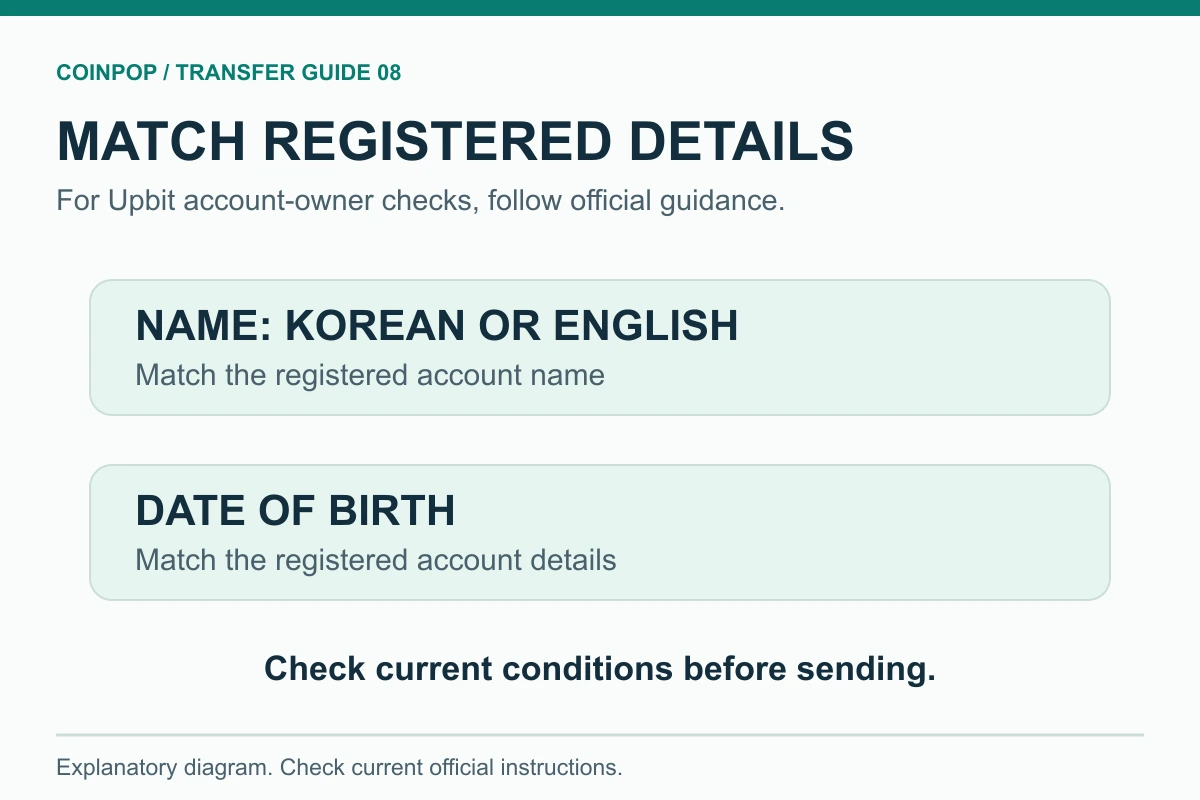
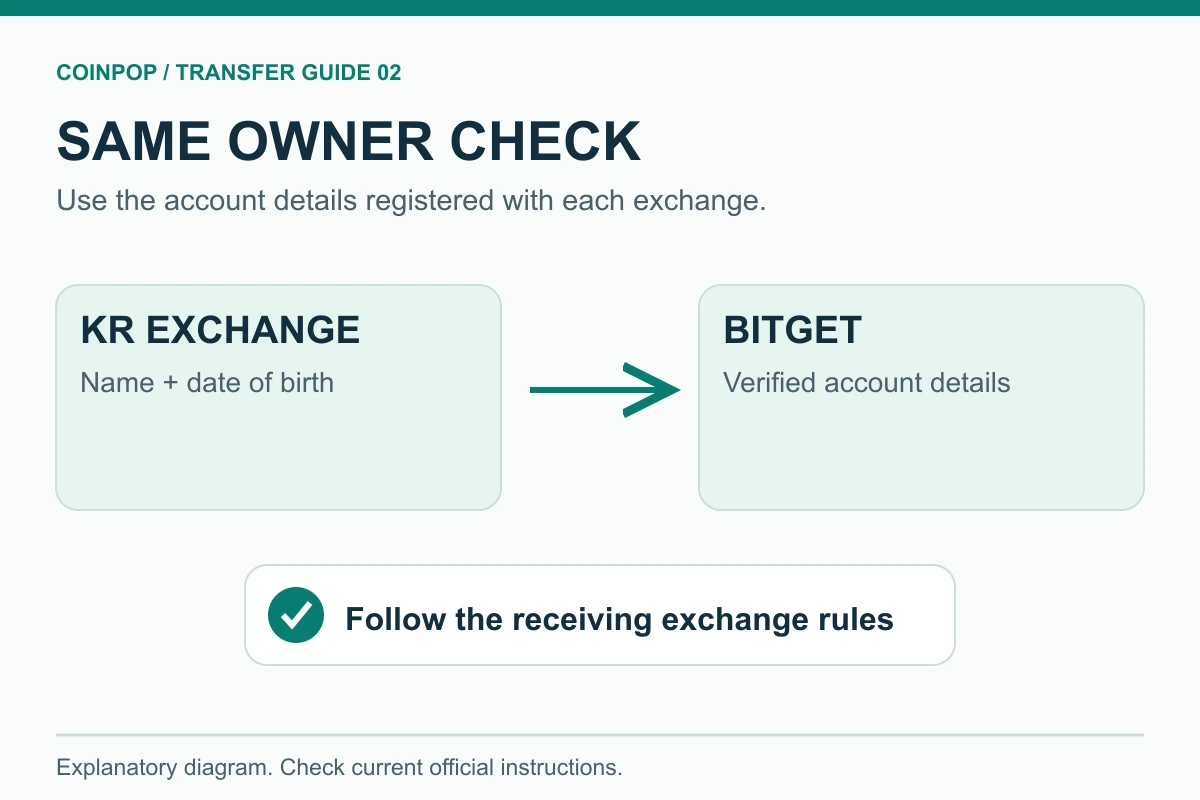
As of October 16, 2026, Upbit lists Bitget in its official VASP list as a virtual asset service provider integrated with account-holder verification. Account-holder verification applies to deposits and withdrawals with a KRW-converted value of at least KRW 1 million, and the name (in Korean or English) and date of birth registered with Upbit and Bitget must match. For the KRW 1 million threshold, deposits are assessed when they arrive at the Upbit address, while withdrawals are assessed at the time of the request, excluding the withdrawal fee from the withdrawal amount.
When sending from Upbit to Bitget
- Check that the account information, including the Korean or English name and date of birth, matches on both exchanges.
- On the Upbit withdrawal screen, select Bitget as the receiving exchange.
- Choose an asset and network supported by both Upbit and Bitget.
- The time at which the KRW 1 million threshold is assessed and the exclusion of withdrawal fees depend on whether the transaction is a deposit or withdrawal, so check the information shown on the Upbit screen.
- Do not send large amounts to an account under someone else’s name.
Upbit’s list of supported service providers and its procedures may change. If account-holder verification fails after you enter the amount, check the name format, date of birth, and whether the account is corporate or personal, and do not repeatedly resubmit the request.
When sending from Bitget to Upbit
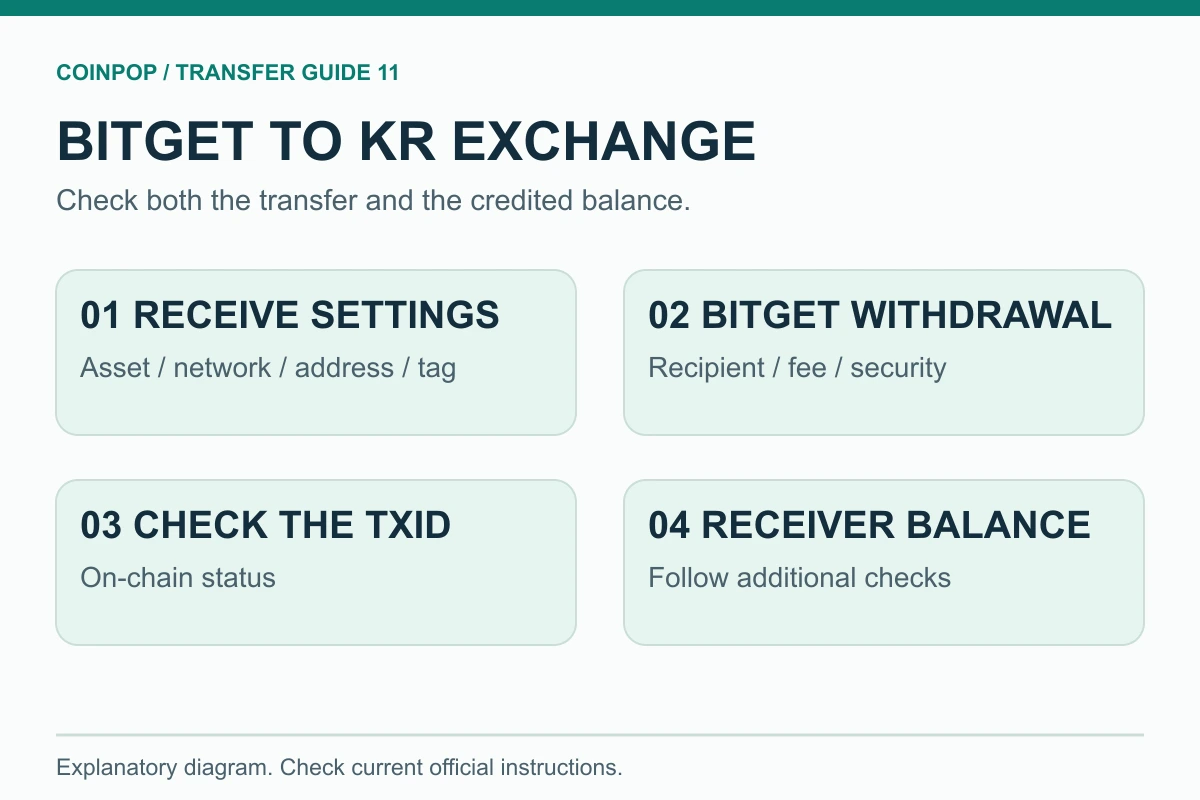
- First check whether Bitget is included as an exchange integrated with account-holder verification in Upbit’s latest list of exchanges supporting deposits and withdrawals. The list in this article is based on October 16, 2026, and was checked against the official list on October 27, 2026. Then, on the Upbit deposit screen for the asset, check whether deposits are available, the network, and the minimum deposit amount, and copy the current address and any required tag or memo.
- On the Bitget withdrawal screen, select the same asset and network, and compare the full Upbit deposit address and tag or memo. If you are asked to enter the receiving exchange and recipient information, enter the details for Upbit and the actual receiving account accurately.
- After checking the fee, estimated arrival amount, and security verification, withdraw the funds. For a route you are using for the first time, first confirm that a small test transfer is credited successfully.
- Check the Bitget withdrawal status and TxID, as well as the Upbit deposit history and the actual balance credit. Do not assume that a successful blockchain transfer means the funds have been credited to your Upbit account.
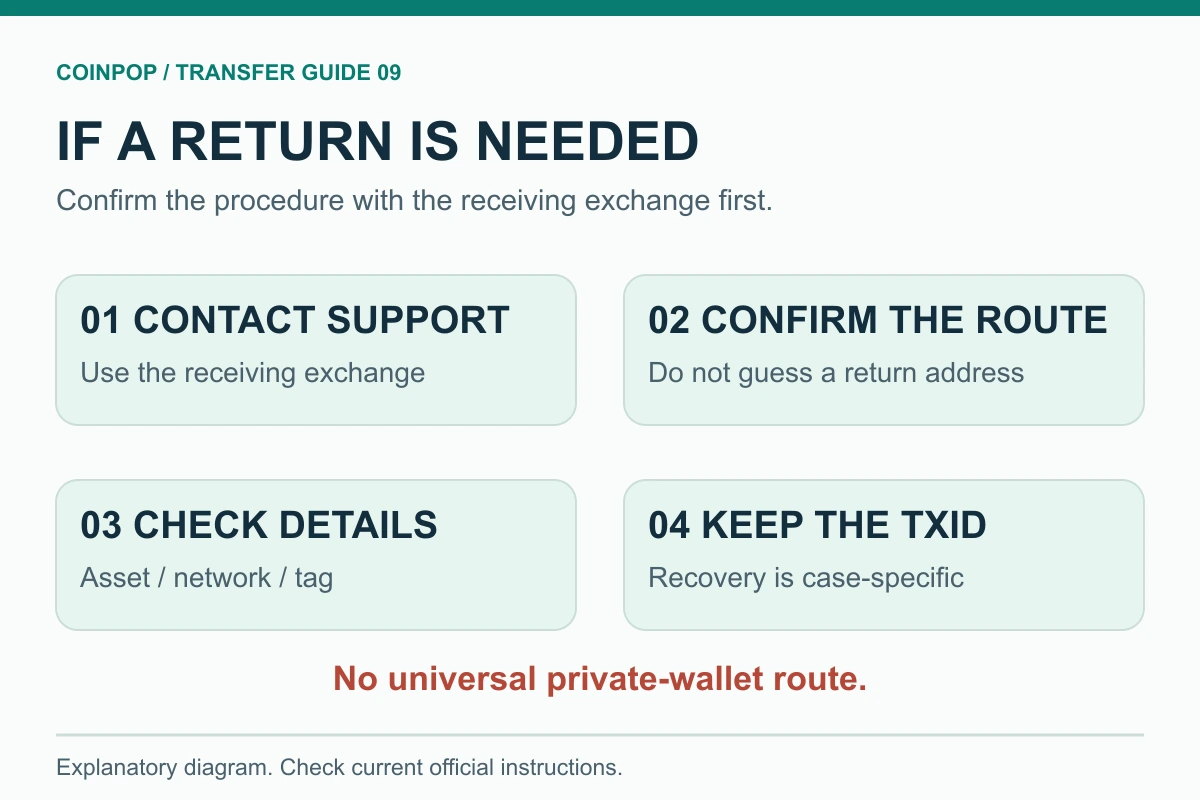
When sending an amount worth at least KRW 1 million from Bitget to Upbit, you must meet the official account-holder verification requirements. In Upbit’s deposit and withdrawal history, open the additional verification instructions for the deposit and select Bitget as the sending exchange to complete the account verification process. If the deposit is pending or you are asked to provide additional verification, follow the official deposit information verification procedure to complete the steps required for that transaction, such as account-holder verification or proof of the deposit’s source. If the deposit cannot be credited due to mismatched account information or similar issues, first check Upbit Customer Center’s return instructions. Do not choose a return address, network, or tag on your own, and do not send additional amounts of the same asset. Procedures vary depending on the amount and transaction type, so do not assume that the same manual application is required for every deposit.
5. Deposits and Withdrawals Between Bithumb and Bitget
Bithumb lists Bitget in its official Customer Center as an exchange integrated with the Travel Rule solution (CODE) (verified against the official list on October 27, 2026). Being on the list does not necessarily mean that individual assets and networks are supported for deposits, so check both separately immediately before transferring. For withdrawals of at least KRW 1 million, you must enter the receiving exchange and recipient information. Withdrawals may be rejected if the information does not match the recipient exchange’s registered information.
When sending from Bithumb to Bitget
- On the Bithumb withdrawal screen, select Bitget as the receiving exchange.
- Enter the recipient’s name exactly as registered on the actual receiving Bitget account.
- Ensure that the asset, network, address, and tag all match.
When sending from Bitget to Bithumb
- After checking whether Bitget is included in Bithumb’s latest list of exchanges supporting deposits and withdrawals, check the currently supported network, deposit availability, and minimum deposit amount on the deposit screen for the asset, then copy the deposit address and any required tag or memo.
- Withdraw from Bitget using the same asset and network, and compare the full Bithumb address and tag or memo. If you are asked to enter the receiving exchange and recipient information, enter the details for Bithumb and the actual receiving account accurately.
- Check the fee, estimated arrival amount, and security verification before transferring, then check the Bitget withdrawal record and TxID, along with the Bithumb deposit history and balance credit. For a route you are using for the first time, make a small test transfer first.
Notice of delays in deposits linked through Bithumb’s Travel Rule: Deposits linked normally are credited automatically. However, if a deposit is not credited due to delays in transmitting Travel Rule information (messages) between exchanges or API usage, you may be asked to submit a deposit application, transfer details, and information about your membership at the sending exchange. Official Bithumb FAQ on pending deposits: This explains the application procedure for deposits from overseas exchanges with a KRW-converted value of at least 1,000,000 KRW (including 1,000,000 KRW). After making a large transfer, do not simply wait for it to be credited automatically; check the status of the actual deposit and whether any additional application is required.
If the deposit application is pending, open the transaction in Mobile Bithumb under Deposits and Withdrawals → History, or on PC under Assets → Transaction History → Deposit and Withdrawal History, and submit the deposit information and supporting documents requested on the screen. If account-holder or recipient verification is required, use the actual registered information. If it is unclear whether the deposit is on hold, being returned, or eligible for an application, contact Bithumb Customer Center, the receiving exchange, with the TxID, asset, network, amount, and current status. Do not generalize about approval times or return procedures for all transactions.
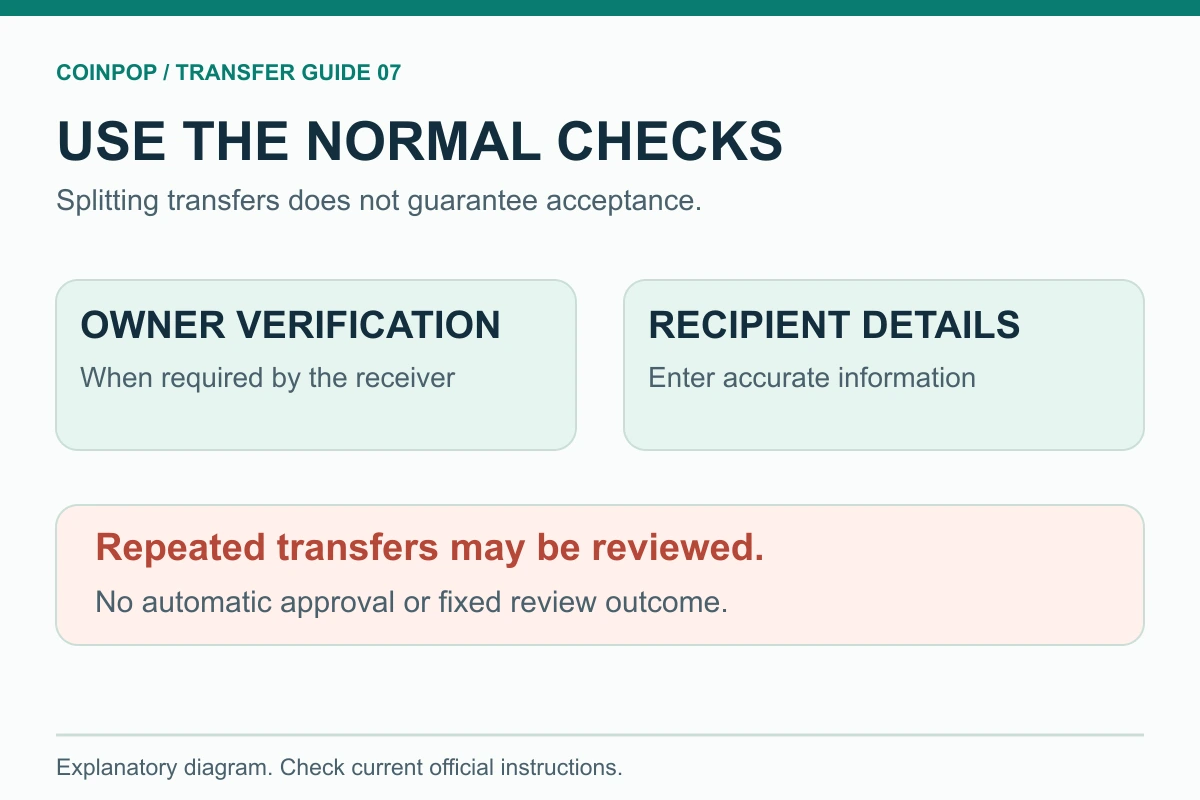
Splitting a transfer into amounts under KRW 1 million does not eliminate verification procedures
Upbit’s official Travel Rule guide explains that repeated deposits or withdrawals of less than KRW 1 million may be deemed unusual and rejected. The guide to withdrawals under KRW 1 million also describes verification procedures such as selecting the deposit source and validating the address. Do not try to bypass normal verification by splitting the amount; follow the exchange’s required procedures for account-holder verification and entering the receiving exchange and recipient information. It cannot be assumed that a report or penalty will automatically be imposed based solely on a particular number of transactions or amount.
6. Assets That Require a Tag or Memo
Some assets require an additional identifier to distinguish user accounts sharing an exchange’s deposit address, such as XRP’s Destination Tag or XLM’s Memo. If a tag or memo is shown on the Bitget deposit screen, you must enter it along with the address.
| Situation | Recommended action |
|---|---|
| Not yet sent | Copy and enter the address and tag or memo again, separately. |
| Already sent without a tag | Prepare the TxID, asset, amount, deposit address, and originally required tag, then use Bitget’s procedure for deposits not credited. |
| Incorrect tag entered | Stop any further transfers and contact support immediately. |
| No tag field | Check that the asset and network selections are correct and whether the receiving address is a personal wallet that does not require a tag. |
Manual recovery is not guaranteed and may require a processing fee or additional supporting documents. If you discover a problem, do not send another large amount to the same address.
7. What to Check When a Deposit Is Not Credited
- Check whether the withdrawal status on the sending exchange is Complete.
- Check whether the TxID exists and shows a successful status on the blockchain explorer.
- Check whether the required number of confirmations for Bitget has been reached.
- Check that the selected network matches Bitget’s deposit network.
- Check that the amount meets the minimum deposit amount.
- Check that no tag or memo is missing or entered incorrectly.
- Check whether deposits for the asset are temporarily suspended on Bitget.
- If necessary, submit an official missing deposit request or a customer support ticket.
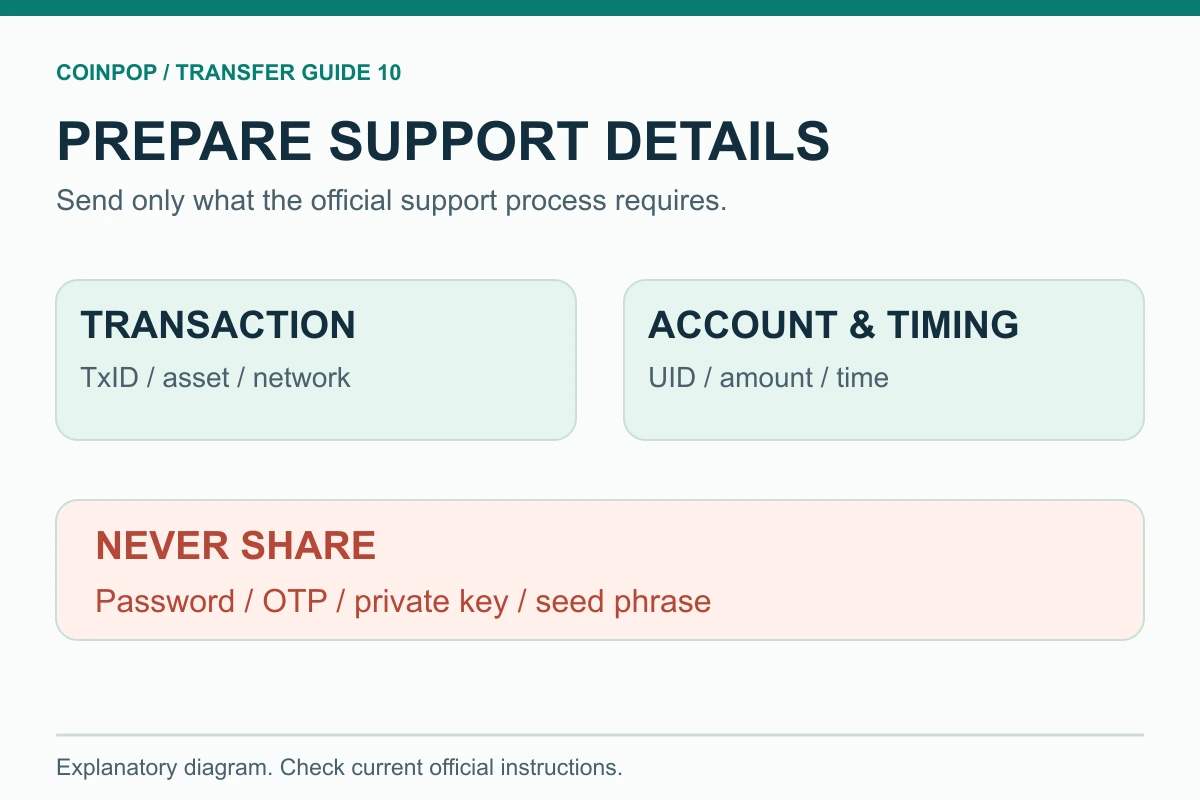
When contacting customer support, do not send your password, OTP, private key, or seed phrase. Legitimate exchange staff will never ask for your private key or seed phrase. The information typically required includes your UID, TxID, asset and network, amount, address, tag or memo, time, and a screenshot.
8. Troubleshooting steps when a withdrawal is delayed or rejected
| Status | Possible cause | Where to check |
|---|---|---|
| Processing | Internal security review, pending wallet processing | Bitget withdrawal history and notifications |
| No TxID | Not yet sent on-chain; risk management review | Bitget status and security restrictions |
| TxID present, but not received | Insufficient network confirmations; pending processing by the receiving exchange | Block explorer and receiving exchange |
| Rejected | KYC, account holder information, address format, or security verification issue | Reason for rejection and Help Center |
| Suspended | Wallet maintenance, network upgrade, risk management | Asset deposit and withdrawal announcements |
You can diagnose common withdrawal issues using the same steps. However, if no TxID has appeared on the screen yet, first check whether the cause may be an internal exchange security review or pending wallet processing rather than a blockchain issue.
9. 60-second checklist before sending
- Are you using the official app or domain?
- Are the asset you are sending and the asset you are receiving exactly the same?
- Are the network selections on both sides exactly the same?
- Did you open the current deposit address and copy it?
- Does the asset require a tag or memo?
- Have you checked the minimum amount, withdrawal fee, and estimated amount to be received?
- Do you meet Upbit and Bithumb’s Travel Rule and account holder requirements?
- Do the full address on the current receiving screen and the address on the withdrawal screen match exactly, including the characters in the middle?
- If this is a route you have not used before, have you made a small test transfer?
- Has clipboard malware altered the address?
10. Bitget-related guides
- Bitget fee discounts, registration, and comprehensive exchange guide
- How to check whether a Bitget referral code was applied and guidance for existing accounts
- Comparison of Bybit and Bitget fees, futures, and copy trading
Frequently asked questions
How much is the Bitget deposit fee?
Bitget states in its official fee information that it does not charge platform deposit fees. However, the sending exchange’s withdrawal fee and blockchain network fees may apply.
Where can I check my Bitget withdrawal limit?
First check your identity verification (KYC) status, then check the 24-hour withdrawal limits by VIP level in the official KYC FAQ alongside the withdrawal screen for your current account. Your limit cannot be determined solely by your KYC level. The amount you can actually withdraw may also be affected by your available withdrawal balance, the minimum amount for each asset, and security or risk management restrictions, so check the official withdrawal limit information and the reason for any restriction shown on screen.
The following are the 24-hour withdrawal limits by VIP level after completing identity verification, as stated in the official Bitget KYC FAQ, checked on October 27, 2026. These are the reference values provided in that document and do not guarantee the latest limits, withdrawable amounts, or security restrictions for your actual account. Check the current withdrawal screen and official fee and limit information for the final terms.
| VIP level | 24-hour limit in the official FAQ (USDT) |
|---|---|
| VIP 0 | 3,000,000 |
| VIP 1 | 4,000,000 |
| VIP 2 | 6,000,000 |
| VIP 3 | 8,000,000 |
| VIP 4 | 10,000,000 |
| VIP 5 | 12,000,000 |
| VIP 6 | 15,000,000 |
| VIP 7 | 20,000,000 |
These limits are separate from the minimum withdrawal amount and fee for each asset, and your currently available withdrawal balance. If there are security setting changes, balances locked in trades, or risk management restrictions, you may be unable to withdraw even an amount below the limit. Do not assume that the 24-hour limit resets at midnight or on a calendar day; check your account screen.
Are Bitget withdrawal fees fixed?
They cannot be assumed to be fixed. Fees may vary depending on the asset, network, and congestion, so check the fee and estimated amount to be received shown on the withdrawal confirmation screen.
Can I send 1 million KRW or more from Upbit to Bitget?
As of October 16, 2026, Upbit lists Bitget as a linked service provider for account holder verification. Your account information must match, and you should confirm the supported service provider, asset, and network on the actual withdrawal screen before proceeding.
Are Bithumb and Bitget linked for the Travel Rule?
Bithumb’s official Help Center includes Bitget on its list of exchanges linked through CODE for the Travel Rule. For withdrawals of 1 million KRW or more, enter the receiving exchange and recipient information accurately.
Can I cancel if I select the wrong network?
In general, a transfer cannot be canceled after it has been completed on-chain. The support teams may be able to help only if both the sending and receiving platforms support the network and recovery is technically possible; recovery is not guaranteed.
Can I keep reusing the same deposit address?
Even if a previous address may still be valid, it is safer to check the address and network again on the current deposit screen each time. This reduces the risk of missing an address change notice or using an incorrectly saved address.
I sent funds from Bitget to Upbit or Bithumb, but they have not been deposited yet.
Completion of a Bitget withdrawal and the crediting of funds to a domestic exchange balance are separate processes. Check the TxID, network confirmations, and deposit history at the receiving exchange. If Upbit requests additional verification or Bithumb indicates that a deposit request is pending, follow the relevant official procedure. For deposit holds or return issues, first check with the receiving exchange’s customer support.
Why is there no balance on the futures screen even though my deposit is complete?
The account that received the deposit may differ from the account type used for trading, or the available amount may differ from the balance. For a regular account, check transfers between accounts if necessary; for UTA, check the current Funding or Unified Trading Account screen. Do not try to resolve an uncredited deposit or locked balance by sending additional funds.
Where can I check the minimum deposit and withdrawal amounts?
Check the minimum withdrawal amount and fee on the sending exchange’s withdrawal screen for the relevant asset and network, and check the minimum deposit amount on the receiving exchange’s deposit screen. This article does not present changing minimum amounts as arbitrary fixed values.
Can I avoid account holder verification by splitting a transfer into amounts under 1 million KRW?
We cannot advise splitting transfers to avoid verification procedures. Repeated deposits and withdrawals may be subject to exchange review or rejection, and source of funds, address verification, or security restrictions may apply regardless of the amount. Complete the required account holder verification and recipient information accurately.
Must I route a deposit return through a personal wallet?
Routing through a personal wallet is not required in every case. Check the permitted route, address, network, and tag in the receiving exchange’s return procedure. For cases where funds are returned to a Bitget hot wallet but are not credited to the account, follow the official guide to recovering returned deposits; recovery availability, timeframe, and fees may vary by case.
Official sources
Key information rechecked: October 27, 2026 (full address comparison, company announcements after the incident, and official Upbit and Bithumb service provider lists). This update also cross-checked domestic exchange recipient lists and deposit pending guidance, regular account and UTA balance structures, withdrawal limits by VIP level, precautions against splitting transfers, and return guidance. The comparison table is an example of comparing conditions, not a real-time-verified list of deposit and withdrawal support for each current account. The reference date for the Upbit service provider list remains October 16, 2026. Confirm supported assets, networks, minimum amounts, fees, and account restrictions on the actual transfer screen and in the latest official information. Not all rates, limits, and app screens were rechecked on this date.
- Official Bitget website deposit guide
- Official Bitget deposit and withdrawal fee information
- Official Bitget guide to resolving missing deposits
- Official Bitget KYC FAQ
- Official Bitget withdrawal limit information
- Official Upbit account holder verification linking information
- Upbit Official Criteria for Transactions of KRW 1 Million
- Bithumb Official Travel Rule Withdrawal Guide
- Bithumb Official Notice on Deposit Delays Due to Solution Integration
- Upbit Official List of VASPs Eligible for Deposits and Withdrawals
- Bithumb Official List of Exchanges Integrated with CODE
- Bitget Official Guide to Transfers Between Accounts
- Bitget Official UTA FAQ
- Upbit Official Guide to Verifying and Explaining Deposit Information
Risk Notice: Cryptocurrency transfers involve risks including address or network errors, changes to exchange policies, security reviews, network congestion, and asset price fluctuations. This article provides procedural information and is not investment or legal advice.