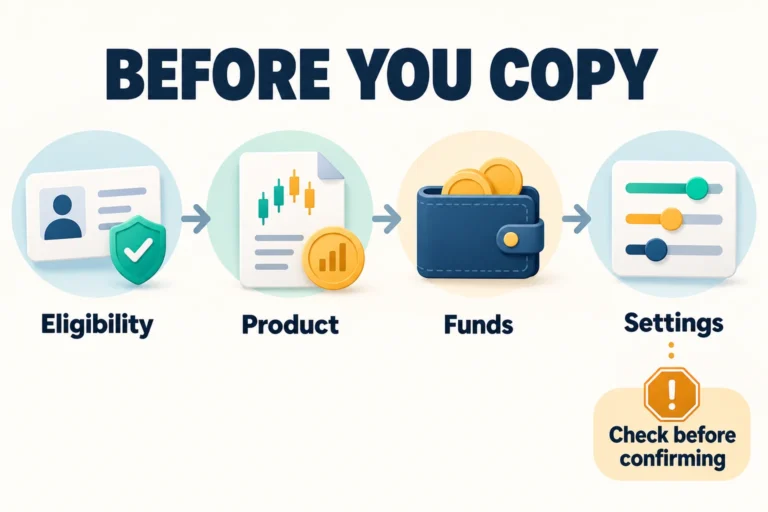

The key to trading Bybit futures is to check the contract, margin mode, and order quantity, then separately confirm that the order has been filled and that the position has been closed. Order cancellation applies to quantities that have not yet been filled; positions that have already been filled must be closed separately. This article explains the on-screen workflow for USDT perpetual contracts and does not recommend any particular asset, direction, or leverage.
Update and official information checked: October 24, 2026. Written and edited by: CoinPop Editorial Responsibility Information (English). This explanation is based on official documents and is not a firsthand account of testing account trading with real funds. Menus and available features may vary depending on the app version, account, and region.
Risks to check first: Futures involve leverage and forced liquidation, which can cause substantial losses to your margin or the collateral assets in your account. Under cross margin, other positions and collateral assets may also be affected. A stop-loss order does not guarantee a maximum loss or execution at the desired price. Do not proceed if you do not meet the applicable regional or account eligibility requirements.
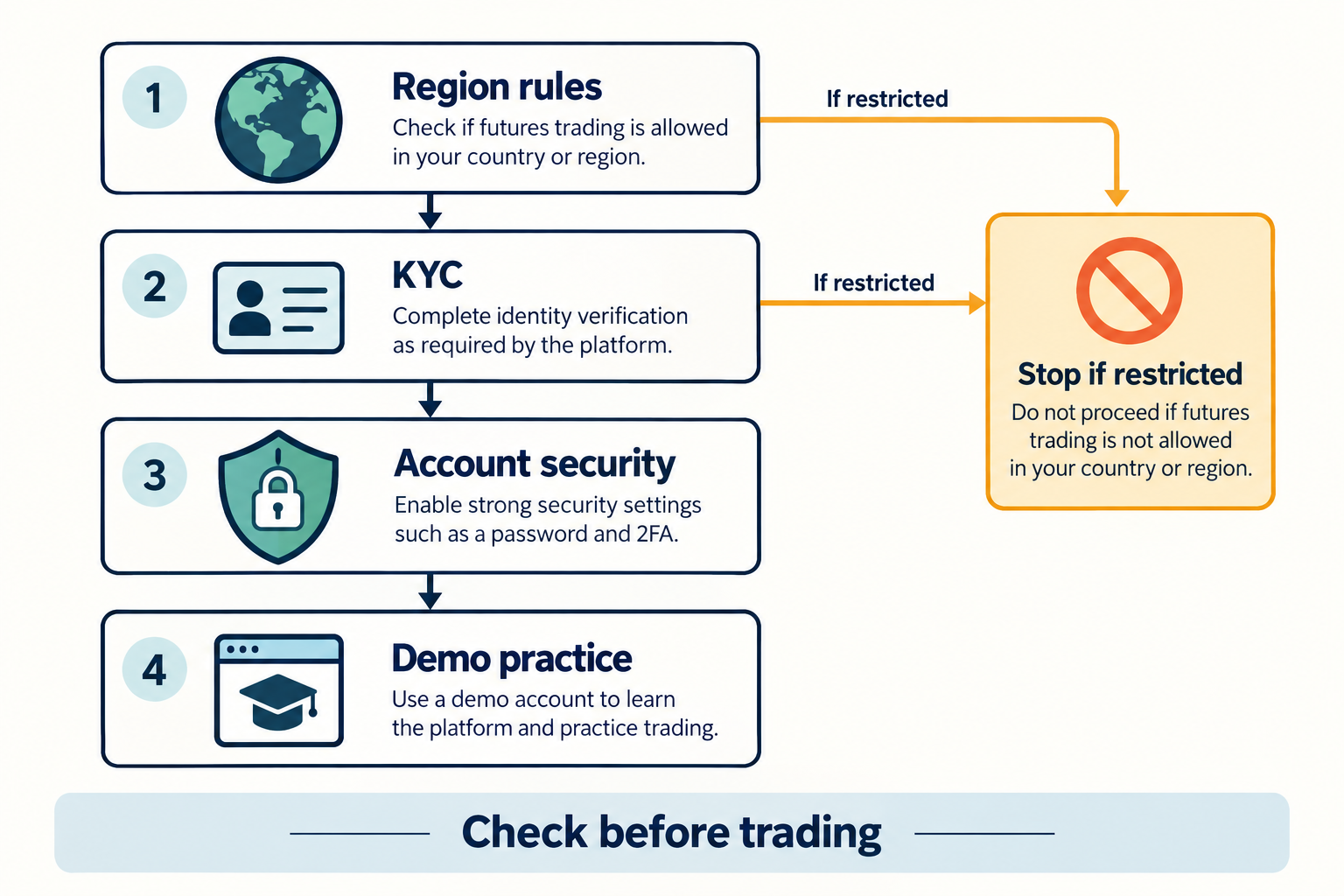
1. Before getting started: Check regional eligibility, KYC, and demo practice
Installing the app or opening the website does not in itself confirm your eligibility to use futures products. First check the official restricted regions information, the actual contracting entity, your residence and KYC status, and the product availability conditions for your account. Do not bypass restrictions using a VPN or false residence information. To avoid confusing South Korean business regulations with deposit and withdrawal support, you can also check the information on eligibility for users in South Korea separately.
New users can familiarize themselves with the interface and order statuses in Demo Trading before trading with real funds. According to the official FAQ, access the demo through the profile menu on the website or Profile Settings in the app, and identify the current mode using the Demo Trading indicator at the top of the screen. Virtual assets cannot be withdrawn, and demo fills do not guarantee the execution or P&L of live trades. Signing up for a separate Testnet and switching to a demo account are different procedures. Follow the current availability conditions in the official Demo FAQ.
Account creation, KYC for live trading, and security settings are covered in the Bybit Account Registration, KYC, and Security Check Guide. Do not assume demo and live trading have the same KYC requirements. You do not need to submit a real order by following the calculations and procedures in this article.
2. Check USDT perpetual contracts and available trading balance
On the trading screen, check the contract type and settlement asset rather than looking only at the coin name. For example, BTCUSDT perpetual contracts and BTCUSD inverse contracts have different quantity and settlement units. The examples in this article are limited to linear USDT perpetual contracts, where you enter a BTC quantity and calculations are made in USDT. Do not apply this explanation as-is to spot purchases, expiry futures, options, or copy trading.
Not all of the total balance shown on the assets screen is available for new orders. Margin used by existing positions and active orders, as well as P&L, affects the available amount. Check the asset location, settlement asset, and collateral settings in your current Funding Account and Unified Trading Account (UTA). Do not assume that the old procedure of “transferring from the Spot Wallet to the Futures Wallet” applies universally to all UTA accounts. The official information on assets while using UTA explains differences by margin mode.
| Check item | Expected result | When to stop and check |
|---|---|---|
| Contract name and type | USDT perpetual contract for the intended asset | Confusion with spot, inverse, or expiry products |
| Account and settlement asset | Assets and account available in the current mode are confirmed | Only the total balance is shown, with insufficient available margin |
| Quantity and minimum order requirements | Entry unit, minimum quantity, and trading amount requirements are met | Unclear whether the unit is BTC or USDT |
| Demo or live trading | The intended account mode is displayed | The screen is for live trading, despite thinking it was demo practice |
3. Differences between isolated and cross margin, and one-way and hedge modes
Margin mode determines which collateral bears the risk, while position mode determines how buy and sell orders for the same asset interact with existing positions. Do not change only the leverage number while overlooking these two settings. Switching modes may be restricted if you already have positions or active orders.
| Setting | Meaning | Risk to check |
|---|---|---|
| Isolated margin | Managed based on the margin allocated to the position | Check the actual settings, such as additional margin and automatic replenishment. There is no guarantee that you can lose only the amount initially deposited. |
| Cross margin | Eligible account collateral, margin, and other assets are shared | P&L and collateral value of other positions may affect account risk |
| One-Way | An order in the opposite direction for the same asset may reduce or close an existing position | Exceeding the quantity without protective settings may open a position in the opposite direction |
| Hedge | A mode for holding separate long and short positions in the same asset | Check the products supported and the Open/Close designation. Do not assume that a buy or sell in the opposite direction automatically closes a position. |
Liquidation risk in cross and portfolio margin modes is managed based on factors such as the account’s maintenance margin rate (MMR), so you should not assess the risk to the entire account based only on the displayed liquidation price of one position. This should also be distinguished from the liquidation criteria for isolated margin. For more information, see Fundamentals of Futures Margin and Liquidation and the official UTA FAQ. This article does not recommend any particular margin mode or leverage level.
4. Entering an order: Distinguish price, quantity, trading amount, and order costs
On the futures trading screen for your current account, select a contract and check the price, quantity, direction, margin, and position mode. Quick Trade and the Order tab in the app, as well as the order entry area on PC, may have different layouts. If a confirmation window appears, reread the asset and unit as well. Entering a number does not mean the order has been submitted or filled.
A limit order is subject to the specified price or a better price, but may not be filled. A market order attempts to execute using available liquidity, so the result may differ from the expected price. A limit order may also be a Taker order if it matches immediately with the available quote, and Post-Only may cancel orders that would execute immediately. Do not calculate on the assumption that “limit order = always Maker.” Check the current screen against the official order types information.
Calculation example: 20 USDT in margin is not the same as 100 USDT in trading amount
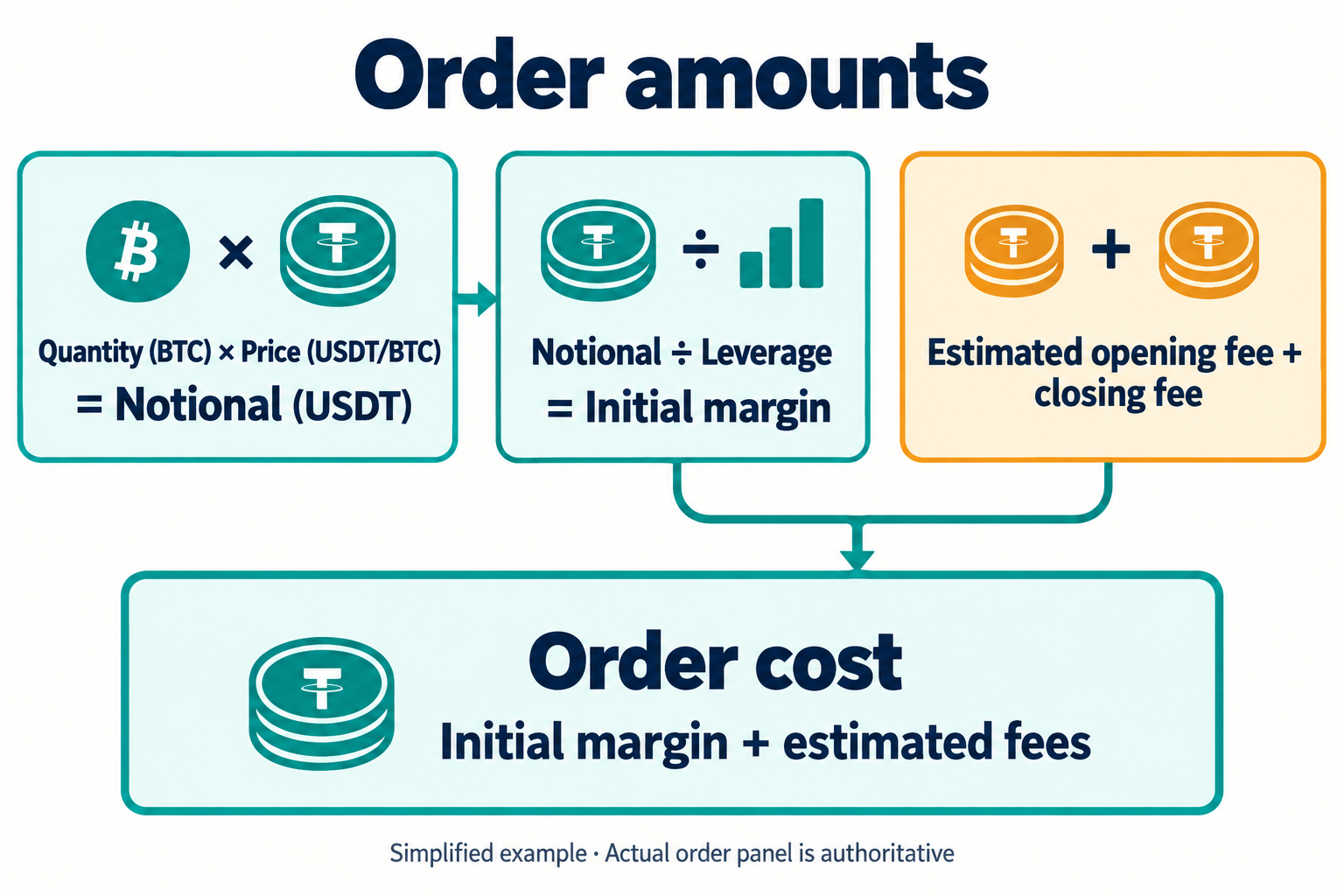
Educational assumptions: Assume a BTC price of 100,000 USDT/BTC, a quantity of 0.001 BTC, and 5x leverage. These figures do not represent the actual current price, minimum order quantity, or recommended leverage. For a linear USDT contract, the trading amount is 0.001×100,000=100 USDT, and the simplified initial margin is 100÷5=20 USDT. Account-specific effects such as collateral haircuts, existing positions, unrealized P&L, and order losses are excluded.
| Item | Calculation and unit | Meaning |
|---|---|---|
| Quantity | 0.001 BTC | Quantity of the contract’s underlying asset |
| Trading amount | 0.001 BTC×100,000 USDT/BTC=100 USDT | Amount exposed to price movements |
| Initial margin | 100 USDT÷5=20 USDT | Margin, distinct from fees |
| Estimated opening fee | 100×0.00055=0.055 USDT | Assume a Taker rate of 0.055% for calculation purposes |
| Reserve for the estimated closing fee on the long order | 100×(1−1/5)×0.00055=0.044 USDT | Estimate based on the example formula for official order costs. Actual closing fees may differ |
| Simple order cost | 20+0.055+0.044=20.099 USDT | Example combining initial margin and estimated fees. The actual order window is authoritative |
The official Order Cost document distinguishes initial margin, opening fees, and estimated closing fees. The rates above are calculation assumptions and do not guarantee the current rates applicable to every account. Actual fees vary according to factors such as execution price, Maker/Taker, and VIP status. Funding fees and borrowing interest are separate. Check the Bybit Fees and Funding Fee Guide to distinguish the cost items.
5. Check order status: unfilled, partially filled, and position
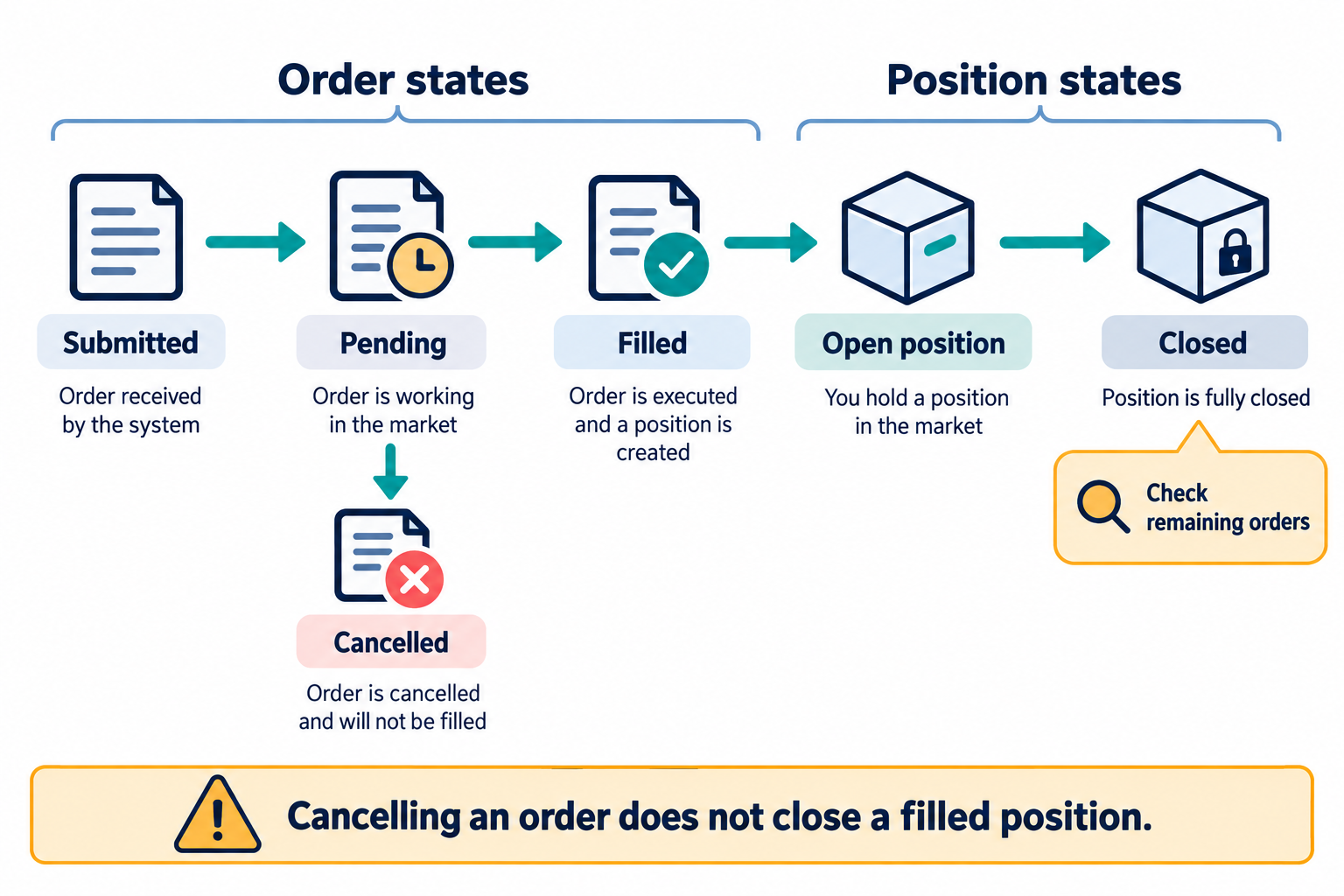
After placing an order, do not rely on a single notification. Check the order list and position list separately. Review both the quantity remaining in Open Orders and the quantity open in Positions so you do not miss a partial fill. If you cancel the remainder of a partially filled order, the portion already filled remains as a position.
| Status displayed | What it means | What to check |
|---|---|---|
| Submission failed or rejected | The order was not activated successfully | Check the reason for the error. Do not resubmit repeatedly just because the screen is delayed |
| Unfilled | An order exists, but none of it has been filled | Check the price, time in force, order conditions, and whether it was canceled |
| Partially filled | Some quantity may be a position, with the remainder still an active order | Check the filled quantity and remaining order quantity separately |
| Filled | The filled quantity is reflected in the position | Check the direction, quantity, average entry price, and actual fees |
If a delay or communication error occurs, first recheck the order history and position before taking action. Sending the same order multiple times when its acceptance status is unclear can create greater exposure than intended. This verification principle is not a way to trade faster; it is a check to avoid duplicate orders.
6. Take profit and stop loss: the difference between trigger price and actual execution
When setting TP/SL, check not only the price but also the applied quantity, position direction, whether it applies to the whole or part of the position, the trigger reference, and the execution order type. Distinguish the timing of TP/SL set in advance when entering an order from TP/SL set on a position after execution. Do not treat settings for an entire position and settings for part of a position as the same.
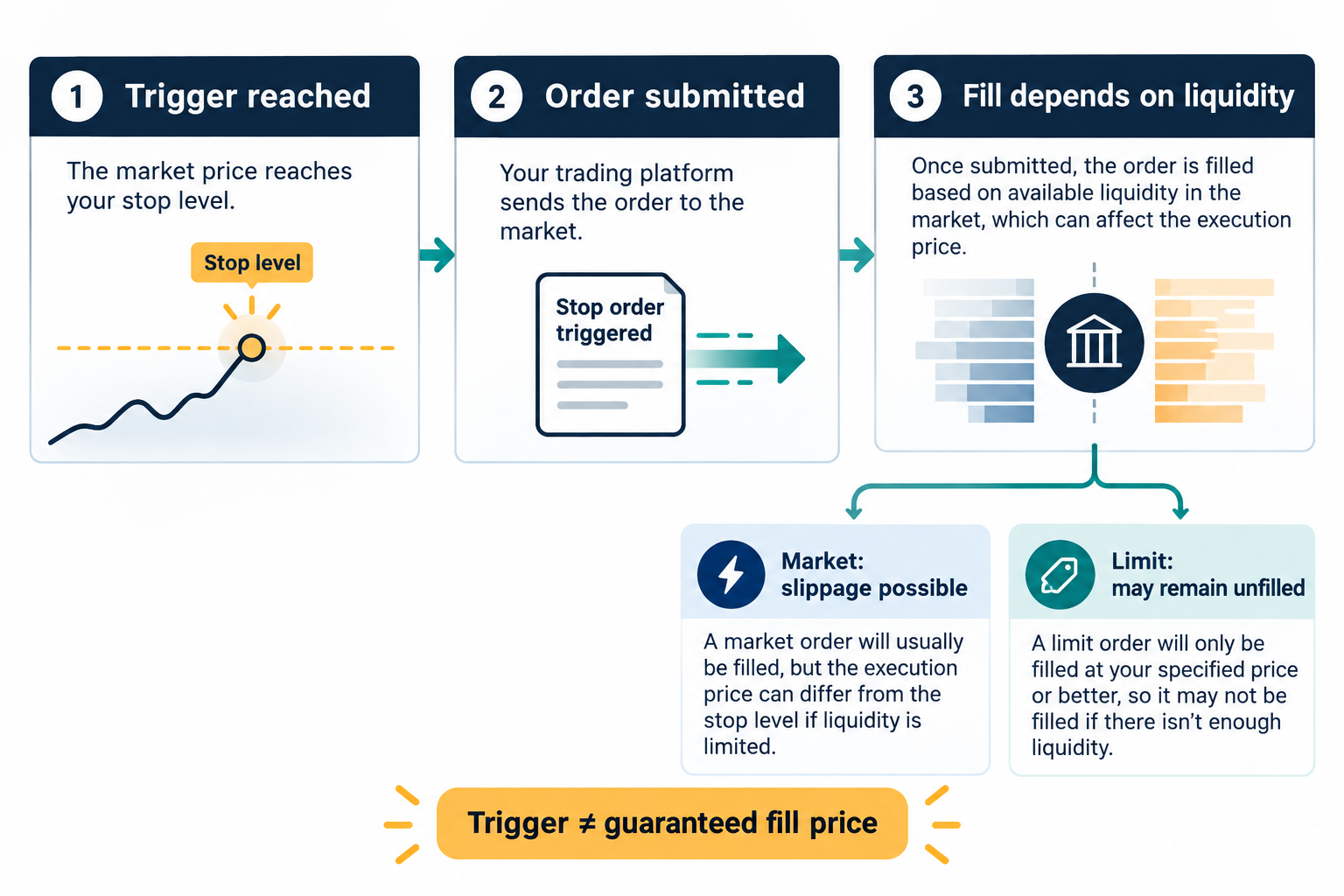
A trigger is the condition that submits an order, while the execution price is the price at which that order actually trades. A market stop-loss may incur slippage, while a limit stop-loss may remain unfilled due to liquidity or price conditions. Check which reference is used: Mark Price, Last Traded Price, or Index Price. If the price shown on the chart differs from the reference used for liquidation or stop-loss, conditions may be triggered in a different order than expected.
Compare against the official TP/SL guidance, and check whether the order for the relevant direction and quantity appears in the actual settings list. For more information about how protective orders work, see The Difference Between Reduce-Only and Close on Trigger. Setting a stop-loss does not make liquidation or loss of principal impossible.
7. How to cancel orders, partially close, and fully close
When canceling an order that has not yet been filled
In Open Orders, match the instrument, direction, and remaining quantity, then cancel the relevant order. Check the cancellation status and remaining quantity, and then check Positions as well. If part of the order was filled beforehand, only the remaining order was canceled; the filled portion does not disappear.
When closing a position that is already open
In Positions, select the correct instrument and direction, then review the quantity, market/limit order type, and confirmation details in the Close function. For a partial close, check the desired remaining quantity after execution; for a full close, confirm that the quantity for that direction is zero. A limit closing order may be submitted while the position remains open. In hedge mode, do not confuse Open with Close.
If you use an opposing order in one-way mode, check the supported closing protections, such as Reduce-Only, and the quantity. Simply selecting the opposite direction risks placing an order that exceeds the position or creating an opposing position. For the actual closing steps in each screen, refer to the Official Guide to Getting Started with Futures on the App and Web.
8. After closing a trade: check remaining orders, fees, and funding fees
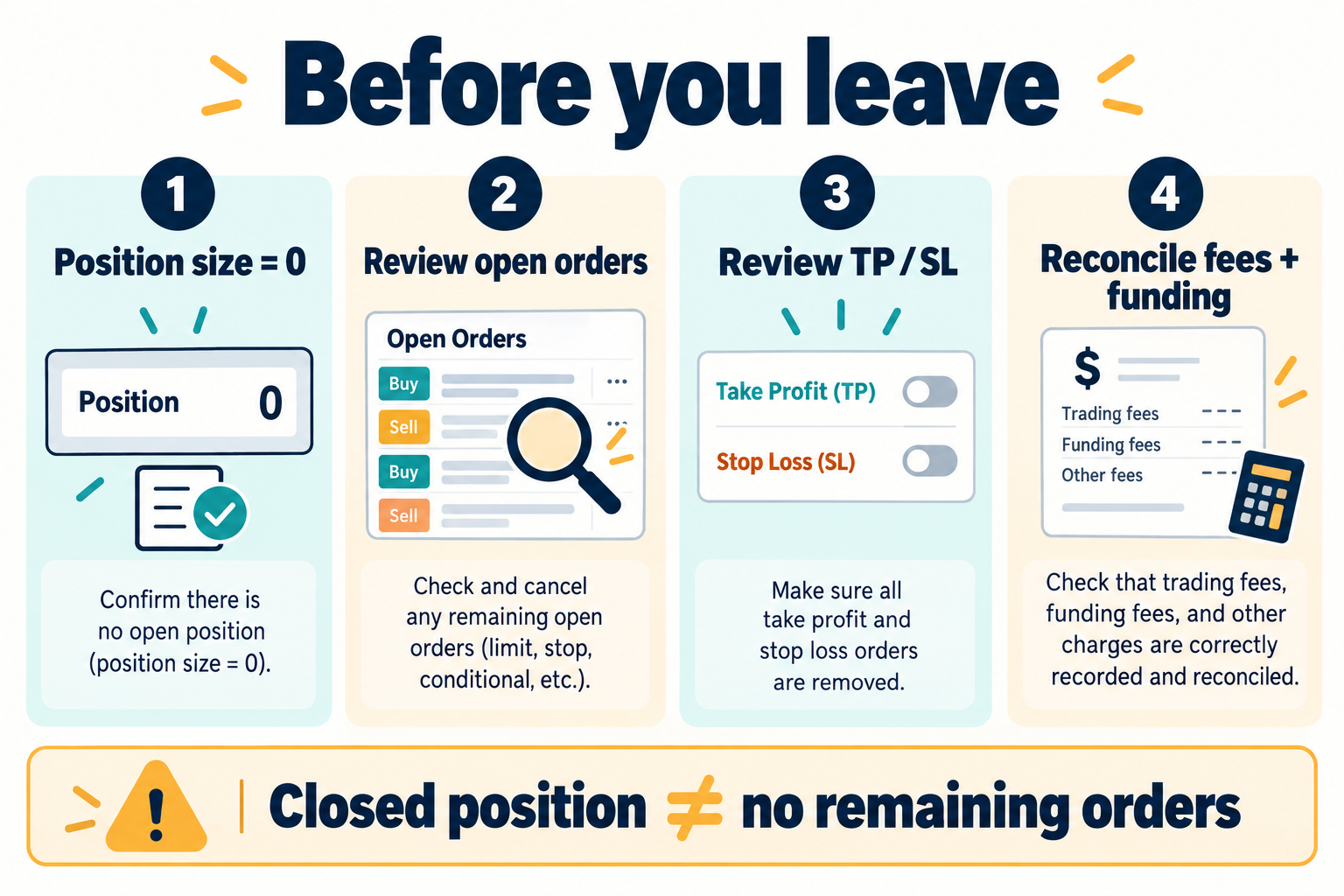
“The position is closed” does not mean “there are no remaining orders in the account.” Check whether the position quantity for the relevant instrument and direction is zero, and whether any unfilled entry, closing, conditional, or TP/SL orders remain. Do not indiscriminately cancel orders protecting other positions; distinguish whether each order is associated with your intended position.
- Do the position quantity and execution history match for the relevant contract and direction?
- Are any active, conditional, or TP/SL orders that are no longer needed still open?
- Have you checked the actual opening and closing fees and settled funding fees separately?
- If the account incurs borrowing or interest, have you checked those items separately as well?
Funding fees are calculated using the position value and funding rate according to the contract terms, and may be either paid or received. Do not assume that all contracts have the same fixed settlement interval. Compare against the official funding fee document and actual transaction history. Do not look only at unrealized P&L on screen; distinguish actual fees, funding fees, and other costs, as described in the Futures P&L Reconciliation Guide. Keep records so transaction history is not mixed with deposited or withdrawn principal.
9. Troubleshooting order issues and FAQ
| Issue | Check first | What to avoid |
|---|---|---|
| Cannot place an order despite having a balance | Available margin, current mode, active orders, minimum quantity/value, and risk limit | Relying only on the total balance and increasing leverage to force through an order |
| Cannot change mode | Existing positions and orders, and the supported conditions for that contract | Repeatedly changing account or position settings without knowing the cause |
| Limit order is not filled | Price, order book, order conditions, and remaining quantity | Resubmitting without checking whether the order was canceled or filled |
| Stop-loss does not work as expected | Trigger reference, quantity, direction, market/limit order type, and execution status | Interpreting the trigger being reached as a guarantee of execution at the desired price |
| Regional or account restriction notice | Official terms, account notices, and customer support | Circumventing restrictions with a VPN, false KYC, or routed trading |
Can I use Bybit Futures right after signing up?
No. Check actual product availability, regional and account requirements, and the KYC and risk notices for live trading. Do not assume that demo account conditions apply to live trading. An overview of the account and services is available in the Bybit Comprehensive Guide.
Does setting a stop-loss fix the maximum loss?
No. Trigger and execution references differ, as do slippage, liquidity, order conditions, and liquidation risk. You should also check automatic margin addition or cross-collateral conditions.
Why is the position still open even though cancellation is complete?
Only the unfilled remainder of the order may have been canceled, while the filled position remains. Check the filled quantity in the order history and the remaining quantity in Positions separately.
What leverage is safe for a beginner?
No leverage level guarantees safety. Even at the same leverage, risk varies depending on trade value, collateral scope, existing positions, and stop-loss execution conditions. The 5x figure in this article is an assumption for explaining units and calculations, not a recommendation.
Final check: Verify the contract and units → confirm order submission and execution → check the position and TP/SL → confirm closing execution → check remaining orders and costs associated with that position. The explanatory diagram was created by CoinPop as an educational image and is not an actual exchange screen or proof of account execution.
Conflict of interest disclosure: CoinPop may receive fees through exchange affiliate links. Account-related links in this article lead to informational documents and do not guarantee registration, trading, or any particular benefit. You are responsible for reviewing your investment decisions and risk of loss.
After checking the regional and account terms and risks, if you need to create an account, you can review the current terms directly on the Bybit official signup page (affiliate link). You do not need to make live trades or deposit additional funds just because you practiced in demo mode or read this explanation. CoinPop may receive a commission if you sign up through this link.